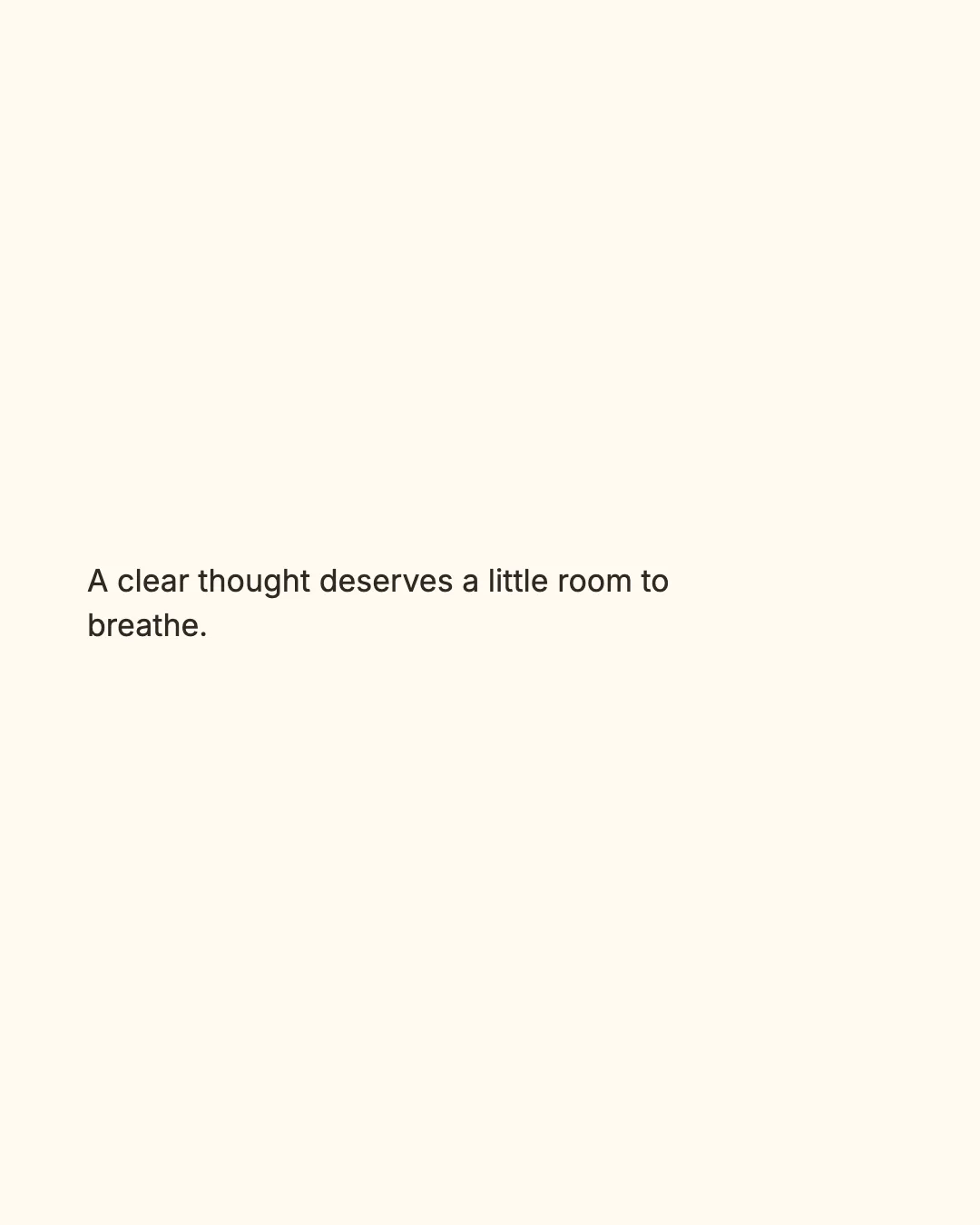
Text to Image
Turn a note, thought, list, or short passage into a clean sharing image.
- No watermark
- Images stay in your browser
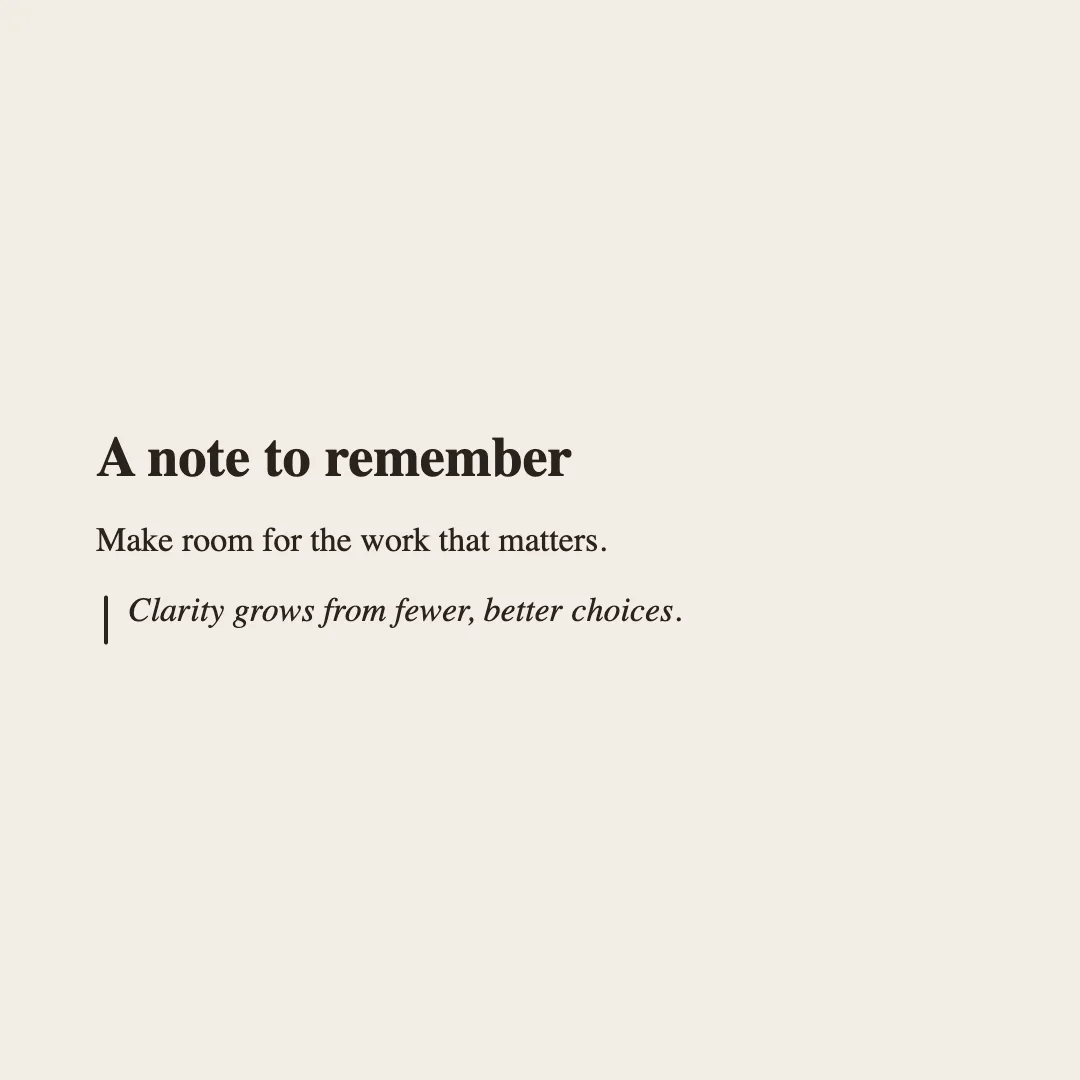
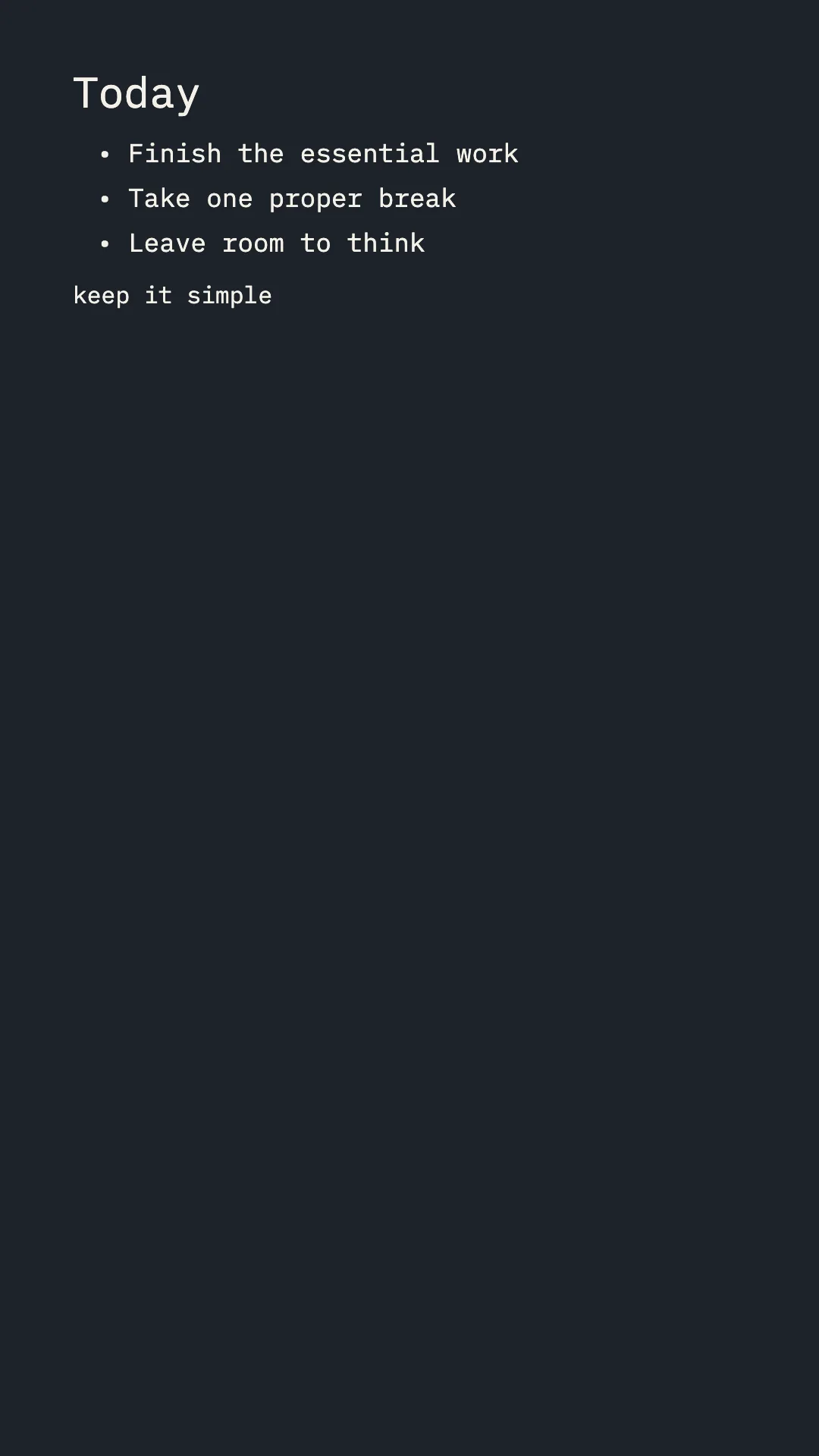
Start from a finished layout
Templates
Start with plain text or use a small, safe Markdown vocabulary when your note needs more structure.
How It Works
1
Write or paste your text
Use one note, thought, list, or short passage—up to 1,200 characters.
2
Choose the typography
Pick Plain text or Markdown, then set the font, size, alignment, spacing, and colors.
3
Export your PNG
Download the current social size or export all three sizes together.
Safe Markdown & Local Processing
A deliberately small syntax
Structure your note without raw HTML, executable content, remote images, or clickable links.
Your words stay local
Parsing, layout, and export happen in your browser. Your words are not uploaded, and exports have no watermark.
Who it suits and where it stops
Best for
One note, thought, list, or short passage where hierarchy and reading comfort matter more than decorative design controls.
Not for
Long articles, tables, raw HTML, remote images, or Markdown that needs a full publishing engine.
Give your words a clean place to land.
Start with the example, then replace it with your own note or short passage.
Use this toolText to Image FAQ
Is my text uploaded?
No. Your text is laid out and exported locally in your browser.
What is the difference between Plain text and Markdown?
Plain text preserves your words and line breaks exactly. Markdown adds a safe set of headings, emphasis, lists, blockquotes, links, images, and inline code formatting.
Which Markdown syntax is supported?
Use H1–H3 headings, bold, italic, ordered and unordered lists, blockquotes, inline code, links, and images. Links show their label and images show their alt text.
What happens if my text is too long?
The tool identifies the size that cannot fit. Shorten the text, choose a smaller text size, or use tighter spacing.
Which output sizes are available?
Export square 1:1, portrait 4:5, or vertical 9:16 PNG images—or download all three in one ZIP.
Which fonts and characters can I use?
Choose built-in English, Simplified Chinese, or Japanese fonts. Common Unicode emoji use a consistent monochrome style in both preview and export.
Will the exported image have a watermark?
No. Text to Image exports clean PNG files without a watermark.